
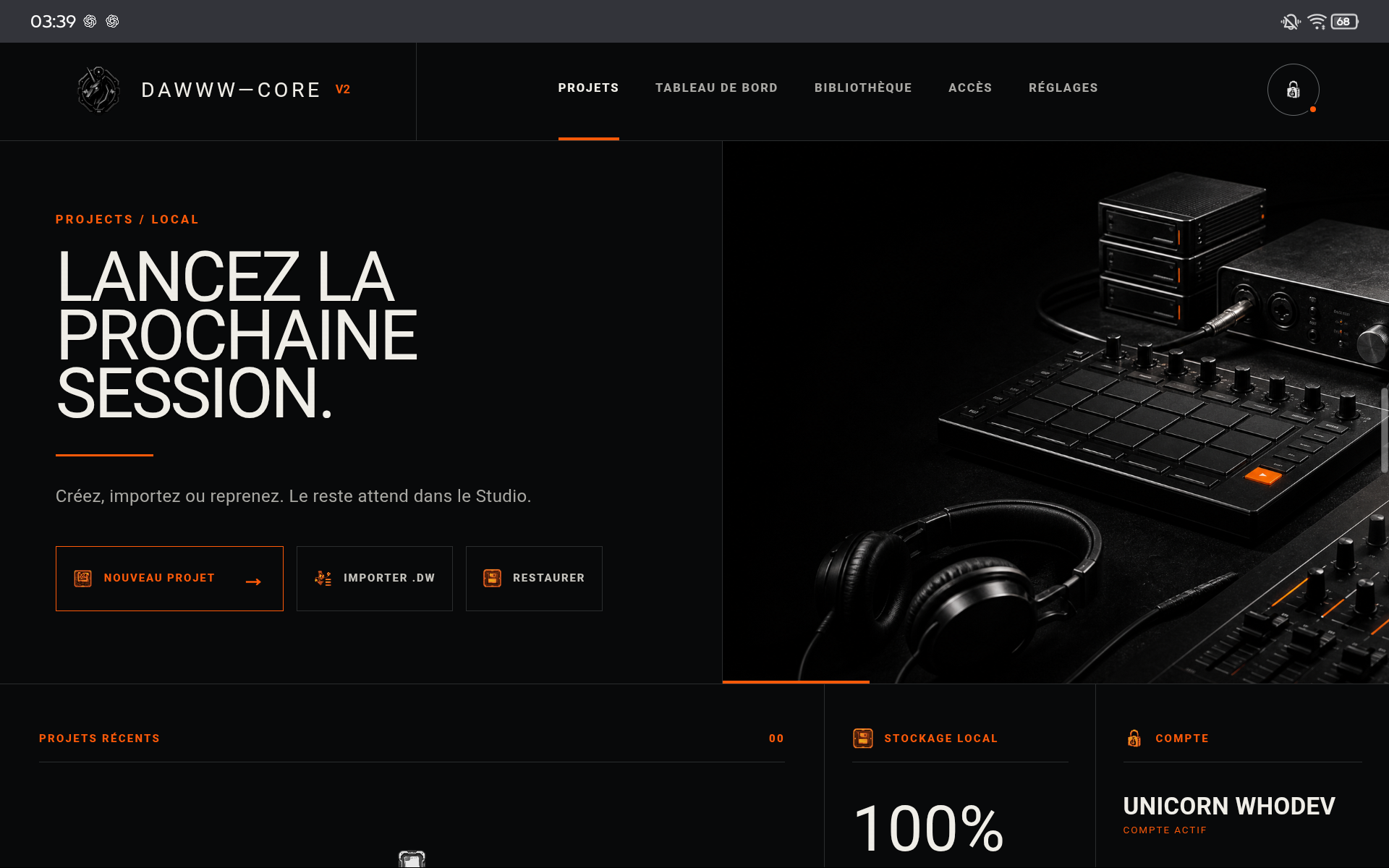
1. Use the launcher as the resume point
The launcher shows projects available on this device. Use it to resume a session, create a clean project, or import a .dw copy. A project missing from the launcher may simply belong to another device or browser profile.
2. Version before risky changes
Before restructuring a track, replacing many instruments, or rebuilding the mix, export a dated .dw copy. You can compare or revert without depending on session history.
3. Transfer, then verify
Move the .dw to the other device, import it, and verify essential elements. Delete the source only after verification.
TIPS
Keep these in mind
- Use date + name + milestone for important copies.
- Keep at least one copy outside the browser profile.
- Before clearing storage, export projects you want to keep.
AVOID
- Assuming the account is a cloud backup of project data.
- Overwriting a single .dw file forever.
- Clearing local data without an inventory.